Chat Panel
The Chat Panel in LitView lets you ask questions about the papers saved in a workspace. It acts as a workspace-specific research assistant, helping you explore, summarize, and understand the literature you have collected.
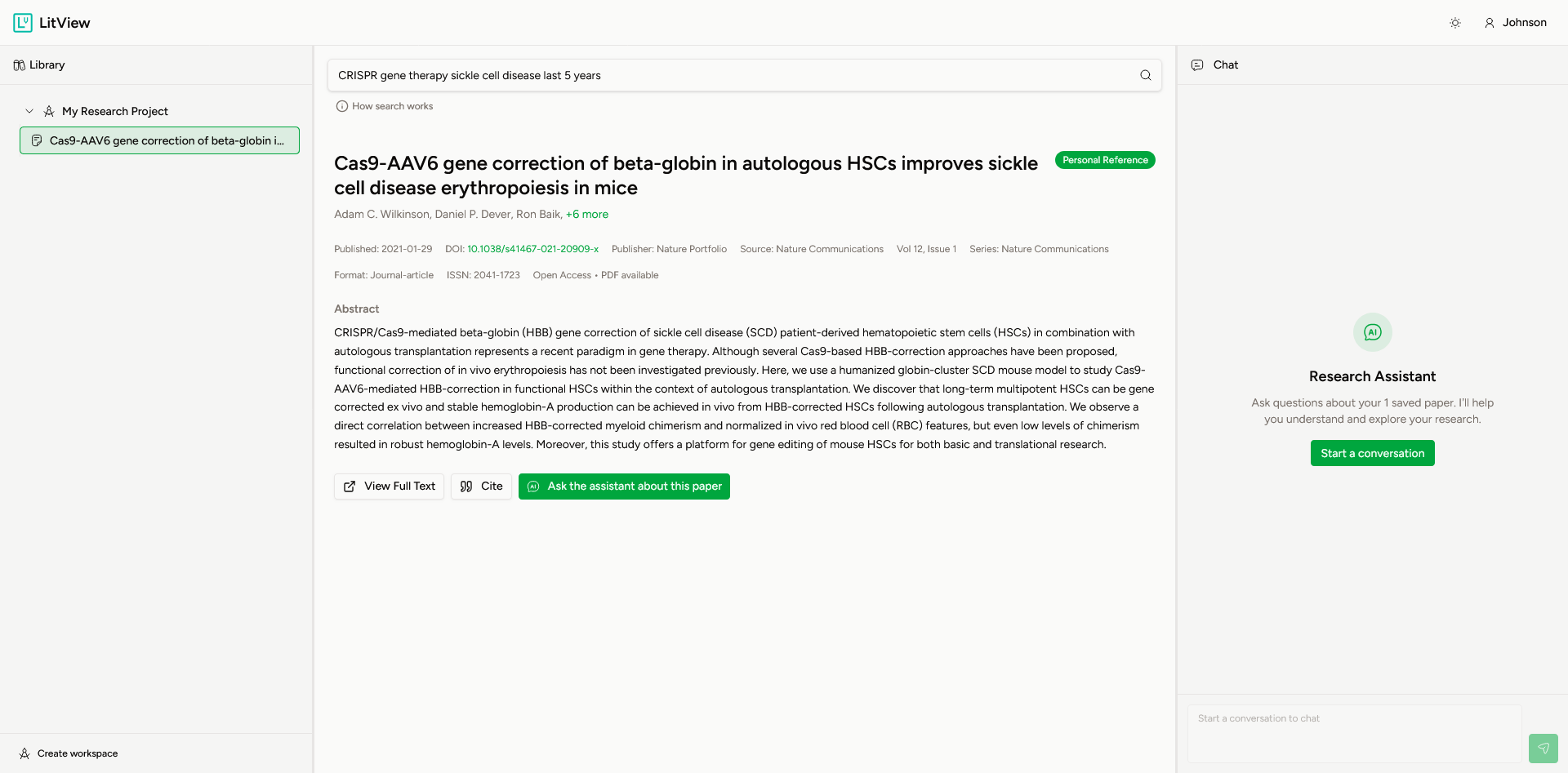
What the Chat Panel is for
Use the Chat Panel to:
- ask questions about papers saved in a workspace
- summarize key findings from a paper
- identify important methods, outcomes, or conclusions
- explore the literature collected for a project
- interact with your saved references in a more natural way
How the Chat Panel works
The Chat Panel is workspace-specific.
Each workspace has its own research assistant, based on the papers included in that workspace. This means:
- the assistant only works with the references saved in that workspace
- different workspaces can have different assistants, based on different paper collections
- if you switch workspaces, the chat context changes with that workspace
This helps keep conversations focused on the specific project or topic you are working on.
Before you start
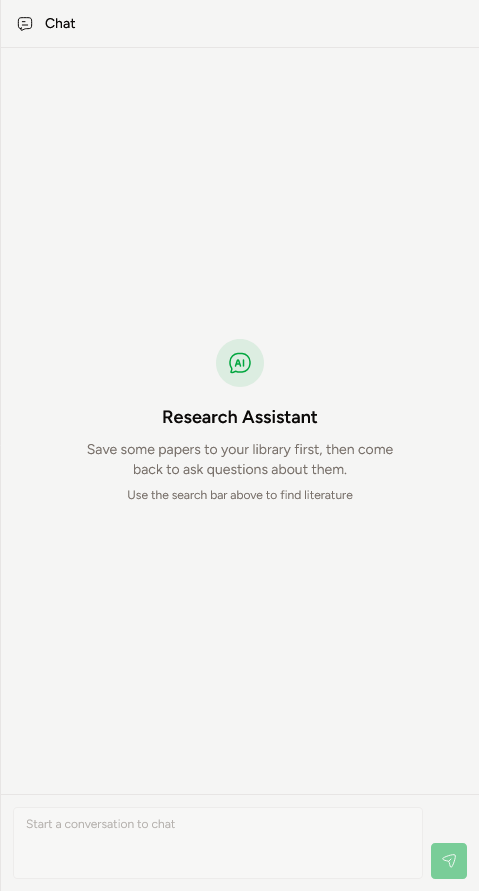
To use the Chat Panel, first save papers into a workspace.
If a workspace does not yet contain saved papers, the chat panel will show an empty state and prompt you to add references first.
Ways to access the Chat Panel
There are two main ways to access the Chat Panel in a workspace.
Open the Chat Panel directly
- Open the workspace you want to work in.
- Make sure the workspace contains saved papers.
- Open the Chat panel.
- Type your question into the chat box.
- Send your message to begin the conversation.
Ask the assistant about a saved paper
You can also access the chat from a saved paper.
- Open a saved paper in the workspace.
- Select Ask the assistant about this paper.
- The chat panel will open for that workspace.
- Ask a question about the paper.
This is useful when you want to move directly from reading a paper to asking questions about it.
Starting a conversation
Once the Chat Panel is open, type your question into the chat box and send it.
The assistant will respond based on the references included in the current workspace.
You can ask questions about:
- a specific saved paper
- the main findings of a study
- methods or outcomes
- important details from the literature in that workspace
Example uses
You can use the Chat Panel to ask questions such as:
- What is this paper about?
- What are the key findings from this study?
- What model was used in this paper?
- What were the main results?
- Can you summarize this paper in plain language?
- What methods did the authors use?
- What should I know from the papers in this workspace?
Example conversation
In the example below, the assistant responds to a question about a saved paper and returns a structured summary of its key points.
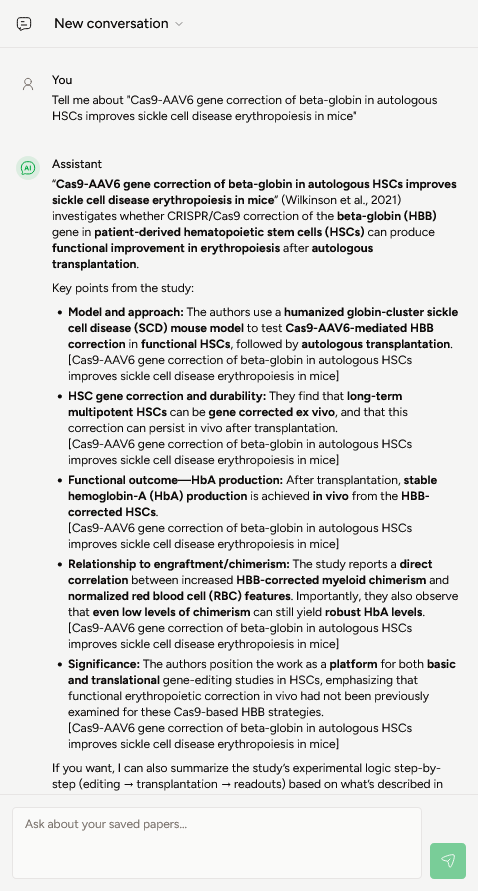
This makes it easier to review and interpret literature without manually extracting every detail yourself.
Tips for better results
For the most useful responses:
- save relevant papers into the correct workspace first
- keep each workspace focused on a clear topic or project
- ask specific questions when possible
- use the chat to clarify papers you have already collected
Because the assistant is based on the papers in the current workspace, better-organized workspaces will lead to more focused answers.
Suggested workflow
A simple way to use the Chat Panel is:
- create or open a workspace
- save relevant papers into that workspace
- open a saved paper or open the Chat Panel directly
- ask questions about the saved papers
- use the responses to help review, interpret, and navigate the literature
This keeps literature collection and exploration in the same workflow.